---
title: "Filesystem"
source: "https://cheerpj.com/docs/guides/filesystem"
---
# Filesystem
Interacting with the virtual filesystem in CheerpJ
CheerpJ gives Java applications a **virtual file system** to read and write files inside the browser sandbox. Browsers do not let web pages access the user’s local disk directly, so all file operations go to this virtual file system. It has several mount points, each with its own purpose and access rules, and JavaScript can use it too.
## Mounting points overview
The virtual file system looks like this:
```text
/
├── app/
├── files/
│ ├── downloads/
│ └── uploads/
└── str/
```
- **`/app/`**: the root of your web server, read-only and fetched over HTTP. Java reads files from your server with the `/app/` prefix.
- **`/files/`**: the application’s own files, kept in the browser’s storage (IndexedDB) between sessions. Java can read and write, and JavaScript can read with [`cjFileBlob`](https://cheerpj.com/docs/reference/cjFileBlob.md). It is the default location for Java file operations.
- **`/files/uploads/`**: files the user uploads with the upload button on a Java window’s title bar.
- **`/files/downloads/`**: files Java saves here are downloaded to the user’s computer, into the browser’s default download folder.
- **`/str/`**: data passed from JavaScript to Java, kept in memory and not persisted. JavaScript writes, Java can only read.
If a file is served by your HTTP server, for example alongside your JARs, Java code can read it with the `/app/` prefix. Files from the user’s computer must be loaded into the virtual file system first. CheerpJ provides several ways to move files into and out of it, from built-in UI to JavaScript APIs.
> **The uploads and downloads directories require CheerpJ 4.3 or later**
For more about the mount points and how they work, see **[Files and filesystems](https://cheerpj.com/docs/explanation/File-System-support.md)**.
## Importing files to the virtual filesystem
There are several ways to give the Java application a file from the user’s computer. The first needs no code.
### Method 1: Using the window title bar upload button
_Supported since CheerpJ version `4.3`_
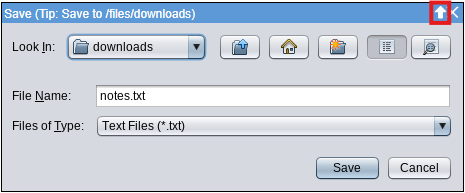
Every CheerpJ window with a title bar has an **upload button** (an upward arrow) in the top-right corner. It opens the browser’s file picker, and the file the user selects is placed in **`/files/uploads/`**, where the Java application can read it straight away. No JavaScript is required.
> **Uploads are not persistent**
>
> Files in /files/uploads/ are not persistent. They are removed when the browser restarts.
The upload button is on every window with a title bar, but it is most convenient in a `JFileChooser` or another open or import dialog, where the user is already choosing a file.
### Method 2: Using `cheerpOSAddStringFile` (string or binary)
To write a file into the virtual file system from JavaScript, use [`cheerpOSAddStringFile`](https://cheerpj.com/docs/reference/cheerpOSAddStringFile.md). It takes text as a string, or binary data as a `Uint8Array`, for example the contents of a file selected with an `` element.
**When to call it:** after the Promise returned by `cheerpjInit()` resolves. The function needs the runtime and the virtual file system to be initialised.
```js
// Call this only after cheerpjInit() has resolved.
function addStringFileToCheerpJ() {
const fileName = "default.txt";
const content = "Default content.";
cheerpOSAddStringFile(`/str/${fileName}`, content);
console.log(`File "${fileName}" added to /str/.`);
}
```
Java reads files in **`/str/`** as regular files. `/str/` is **not persisted** and is **read-only** from Java.
`App.java`
```java
import java.nio.charset.StandardCharsets;
import java.nio.file.Files;
import java.nio.file.Paths;
/*
Rest of your Java code...
*/
String text = new String(Files.readAllBytes(Paths.get("/str/default.txt")), StandardCharsets.UTF_8);
System.out.println(text);
```
### Method 3: Using library mode
When a file is on your server, under `/app/`, but the Java code expects it in `/files/` (for example, by its bare file name without the `/app/` prefix), use [library mode](https://cheerpj.com/docs/guides/library-mode.md) to copy it. With [`cheerpjRunLibrary`](https://cheerpj.com/docs/reference/cheerpjRunLibrary.md), JavaScript can call Java’s `java.nio.file` API to copy the file from `/app/…` to `/files/…` before the application starts.
```js
async function copyFileToFilesMountPoint() {
// Create a library mode object with the standard library only
const lib = await cheerpjRunLibrary("");
const Files = await lib.java.nio.file.Files;
const StandardCopyOption = await lib.java.nio.file.StandardCopyOption;
const Paths = await lib.java.nio.file.Paths;
const source = await Paths.get("/app/notes_tmp.txt");
const target = await Paths.get("/files/notes_tmp.txt");
try {
await Files.copy(source, target, [StandardCopyOption.REPLACE_EXISTING]);
console.log("Copied /app/notes_tmp.txt to /files/notes_tmp.txt");
} catch (e) {
console.error("Error copying file:", e);
}
}
// Initialise CheerpJ, copy the file, then run your Java application
async function cj3init() {
await cheerpjInit({
version: 8,
});
await copyFileToFilesMountPoint();
// cheerpjCreateDisplay(...) and cheerpjRunMain(...) go here
}
cj3init();
// The Java application can now open "notes_tmp.txt" with `new File("notes_tmp.txt")`,
// without the /app/ prefix.
```
## Downloading files from the virtual filesystem
Java applications running with CheerpJ save files to the **virtual file system** (by default in **`/files/`**), not to the user’s disk. There are several ways to deliver these files to the user’s computer.
### Method 1: Saving to `/files/downloads/`
_Supported since CheerpJ version `4.3`_
This method needs no JavaScript. Any file that the Java application saves in **`/files/downloads/`** is **downloaded automatically** to the user’s computer, into the browser’s default download folder.
When the application saves or exports a file, use `/files/downloads/` as the destination. For example, in Java:
`App.java`
```java
import java.io.File;
import java.io.FileWriter;
import java.io.IOException;
// Writing to /files/downloads/ triggers an automatic browser download
File file = new File("/files/downloads/report.txt");
try (FileWriter writer = new FileWriter(file)) {
writer.write("Report content here.");
} catch (IOException e) {
System.err.println("Error writing file: " + e.getMessage());
}
```
If the application uses `JFileChooser` for save or export dialogs, the user can also choose `/files/downloads/` in the dialog to download the file.
### Method 2: Using `cjFileBlob`
The [`cjFileBlob`](https://cheerpj.com/docs/reference/cjFileBlob.md) function reads a file from the virtual file system as a `Blob`, so JavaScript can start the download itself. Java writes the file in `/files/`, and JavaScript reads it and downloads it.
`index.html`
```html
```
### Method 3: Call a JavaScript native method from Java
Use this method when the **Java** code decides when to start the download. Java writes the file in `/files/` and calls a native method, implemented in JavaScript, that downloads it.
**Java writes the file and calls a native method**
`App.java`
```java
// Declare the native method
public static native void downloadFileFromCheerpJ(String fileName);
/*
Rest of your Java code...
*/
try {
String content = "Example content.";
// "example.txt" alone would also work, since /files/ is the default location
File file = new File("/files/example.txt");
FileWriter writer = new FileWriter(file);
writer.write(content);
writer.close();
// Pass the file name to the native method, which reads it from /files/
downloadFileFromCheerpJ(file.getName());
} catch (IOException e) {
System.err.println("Error generating or writing file: " + e.getMessage());
}
```
**JavaScript implements the native method and downloads the file**
The JavaScript implementation of the [native method](https://cheerpj.com/docs/guides/implementing-native-methods.md) `downloadFileFromCheerpJ` receives the file name from Java, reads the file with `cjFileBlob()`, and downloads it with standard browser APIs.
```js
// Native method implementation called from Java
// Naming: Java__
async function Java_App_downloadFileFromCheerpJ(lib, fileName) {
try {
// Read the file from CheerpJ's virtual filesystem as a Blob
const blob = await cjFileBlob("/files/" + fileName);
// Create an invisible link
const link = document.createElement("a");
link.href = URL.createObjectURL(blob);
link.download = fileName;
// Simulate a click on the link and clean up objects
link.click();
link.remove();
URL.revokeObjectURL(link.href);
console.log(`Successfully downloaded ${fileName}`);
} catch (e) {
console.error("Error downloading file:", e);
}
}
// Initialise CheerpJ and register the native method
async function cj3init() {
await cheerpjInit({
// Register native method
natives: { Java_App_downloadFileFromCheerpJ },
});
// cheerpjCreateDisplay(...) and cheerpjRunMain(...) go here
}
cj3init();
```
## Special case: applets using `showDocument()`
In **Java applets**, `AppletContext.showDocument()` offers a lightweight way to start downloads. The **native method approach** is more flexible and robust in most cases.
### Method 1: Direct URL download
If the file is already available at a URL, for example on your server, pass that URL to `showDocument()`.
```java
// Java Applet Code
private void downloadDirectURL() {
try {
// Assumes 'filename.txt' is in the same directory as the applet JAR
URL fileUrl = new URL(getCodeBase()+"filename.txt");
getAppletContext().showDocument(fileUrl, "_blank");
System.out.println("Triggered direct URL download: " + fileUrl.toString());
} catch (Exception ex) {
ex.printStackTrace();
}
}
```
### Method 2: Execute JavaScript for dynamic content
`showDocument()` with a `javascript:` URL calls a JavaScript function in the page, which can then download the file. This is useful for passing content generated in Java to JavaScript for download.
```java
// Java Applet Code
private void downloadViaJavaScriptShowDocument() {
try {
String content = "Dynamic content generated in Java!";
String encodedContent = URLEncoder.encode(content, "UTF-8").replace("+", "%20"); // Encode for URL
AppletContext context = getAppletContext();
// Call a JavaScript function 'downloadFromJava' and pass content
context.showDocument(new URL("javascript:downloadFromJava('" + encodedContent + "')"));
System.out.println("Triggered JS download via showDocument.");
} catch (Exception ex) {
ex.printStackTrace();
}
}
```
The page defines the `downloadFromJava` JavaScript function:
```javascript
// JavaScript in applet.html
function downloadFromJava(encodedContent) {
try {
const content = decodeURIComponent(encodedContent);
const blob = new Blob([content], { type: "text/plain" });
const url = URL.createObjectURL(blob);
// Create an invisible link
const link = document.createElement("a");
link.href = url;
link.download = "applet_showdocument_dynamic.txt";
// Simulate a click on the link and clean up objects
link.click();
link.remove();
URL.revokeObjectURL(url);
console.log("File downloaded via showDocument");
} catch (e) {
console.error("Error downloading file:", e);
}
}
```